

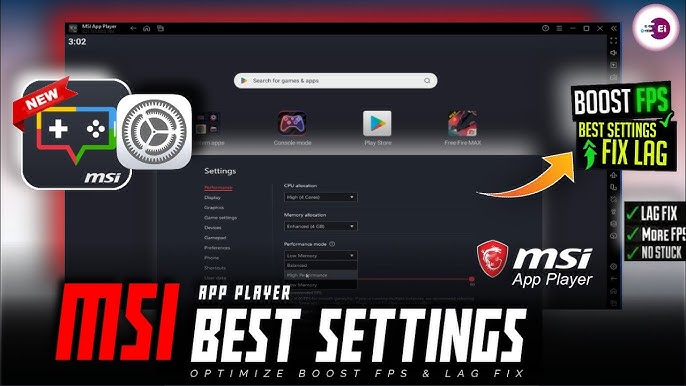
Emulator settings for lag-free play are the secret weapon every gamer needs to master in 2025. Whether you love playing Android games on PC through BlueStacks, LDPlayer, or Gameloop, performance issues like lag, frame drops, and stutters can ruin your gameplay experience. However, with the right setup, even a mid-range computer can run games smoothly, delivering a console-like experience.
Many gamers underestimate how much emulator configuration affects gameplay. The difference between laggy performance and buttery-smooth visuals often comes down to how you tweak CPU cores, RAM allocation, graphics settings, and frame rates. This article will guide you through the most effective adjustments that ensure every match, mission, or race runs seamlessly on your PC.
Why Emulator Settings Matter for Performance
Optimizing emulator settings for lag-free play is about giving your computer the best chance to perform efficiently. Every emulator translates Android code into PC-readable instructions. If your settings are mismatched with your system’s hardware, lag is inevitable.
When configured correctly, emulators utilize your CPU and GPU efficiently, maintaining high FPS and preventing overheating. This balance ensures that your device doesn’t throttle performance after prolonged gaming sessions. Proper setup can also eliminate input delays, which is crucial for competitive games like PUBG Mobile, Free Fire MAX, and Call of Duty Mobile.
In short, the right settings turn your PC into a dedicated gaming machine optimized for Android performance.
Understanding the Basics Before Tweaking
Before adjusting emulator settings for lag-free play, it’s important to understand your hardware limits. Your PC’s processor, RAM, and graphics card determine how much performance you can extract. For instance, a quad-core CPU with at least 8GB RAM is ideal for running modern Android games smoothly on emulators.
You should also check whether virtualization technology (VT) is enabled in your BIOS. This setting allows your PC to run virtual machines more efficiently, giving your emulator direct access to hardware resources. Most modern CPUs from Intel and AMD support this feature, and enabling it often improves FPS dramatically.
Keeping your GPU drivers updated also ensures compatibility and stability, especially if you’re using NVIDIA or AMD cards. With these basics covered, you’re ready to fine-tune your emulator for lag-free gameplay.
CPU and RAM Settings for Smooth Gameplay
The most crucial part of emulator settings for lag-free play is allocating enough CPU cores and RAM. Many emulators let you manually assign these resources in their settings menu.
If you have a powerful PC with at least 8 cores, assign 4 to 6 cores to the emulator. This allows your system to handle multitasking while still dedicating enough power to your game. For RAM, allocate around 4GB to 6GB—this ensures smooth transitions, fast loading times, and fewer freezes during intense gameplay.
Avoid setting values too high because over-allocation can cause other background processes to slow down your system. Balance is key; you want the emulator to have enough memory without starving your operating system of resources.
Graphics Settings and Frame Rate Optimization
No emulator settings for lag-free play discussion is complete without touching on graphics optimization. Every emulator offers options to control resolution, rendering mode, and frame rate.
If you’re using a low or mid-end PC, set the resolution to 720p or 1080p instead of 2K or 4K. This reduces GPU strain while maintaining clear visuals. Choose DirectX or OpenGL rendering depending on which one performs better on your hardware—DirectX often delivers better stability on Windows systems.
Frame rate is another crucial factor. Set your emulator to 60 FPS for most games; this provides a balance between smooth performance and manageable system load. Some high-end systems can go up to 90 or 120 FPS, but only if your monitor supports it.
Turn off anti-aliasing and shadows if you experience frame drops. These visual effects look great but consume significant processing power, especially in fast-paced shooters or racing games.
Storage and Installation Optimization
Proper storage setup is another overlooked aspect of emulator settings for lag-free play. Always install your emulator and game files on an SSD rather than a traditional HDD. SSDs drastically reduce loading times and improve data read/write speeds, which minimizes in-game stuttering.
Also, regularly clear the emulator’s cache and temporary files. Emulators store logs, screenshots, and system data that can pile up over time, slowing down performance. Keeping your storage clean ensures the emulator runs at its best capacity without unnecessary clutter.
If you play multiple games, create separate instances for each one within your emulator. This prevents resource conflicts and keeps individual games optimized according to their unique requirements.
Network Optimization for Online Gaming
When discussing emulator settings for lag-free play, network stability is just as important as hardware optimization. Many games rely on fast and consistent connections to function properly.
Always use a wired Ethernet connection instead of Wi-Fi for better ping and stability. If Wi-Fi is your only option, make sure your router is close and operating on the least congested channel. Closing background apps that use the internet—like downloads or streaming services—can also prevent packet loss and lag spikes.
Some emulators even allow you to prioritize network performance through advanced settings, which helps maintain a stable connection during competitive matches.
Thermal and Power Settings for Long Sessions
Long gaming sessions can lead to thermal throttling, which directly affects frame rate and responsiveness. In your emulator settings for lag-free play, make sure to monitor CPU and GPU temperatures. Tools like MSI Afterburner or HWMonitor help you track this easily.
Lowering in-game brightness, reducing visual effects, and using efficient cooling systems can prevent overheating. If you’re gaming on a laptop, switch to “High Performance” mode in your power settings and ensure it’s plugged in. Running on battery limits performance to save energy, which can cause noticeable lag during gameplay.
Custom Key Mapping and Control Responsiveness
Emulators let you map keyboard and mouse inputs to mimic touch controls, and this can affect gameplay speed. Proper key mapping is part of emulator settings for lag-free play, as poorly configured inputs can delay responses.
Spend time customizing your control scheme for comfort and precision. For shooters, ensure your aim, crouch, and fire buttons are ergonomically placed. For racing or strategy games, set up keys that offer smooth transitions without needing constant repositioning.
Some emulators even allow sensitivity adjustments for each input type, giving you professional-level control accuracy.
How Background Processes Affect Performance
Even with perfect emulator settings for lag-free play, background applications can consume vital system resources. Before launching your emulator, close unnecessary programs such as browsers, file-sharing tools, or video players.
Using Task Manager, you can check which processes are using high CPU or memory and disable them temporarily. This frees up performance for your emulator and prevents sudden lag spikes caused by multitasking overload.
Also, disable auto-update settings on software like antivirus or cloud backup tools during gaming sessions. These can unexpectedly consume bandwidth or system power.
Advanced Optimization Techniques for High-End PCs
Gamers with advanced systems can take their emulator settings for lag-free play to the next level by enabling GPU acceleration. This allows the emulator to offload graphics tasks directly to the GPU, freeing CPU resources for other operations.
Overclocking your GPU slightly (if supported) can also improve frame rates, but always do this carefully and within safe temperature limits. You can also enable high-performance mode in your graphics driver settings to maximize FPS output.
Experimenting with custom profiles for each game within the emulator can provide specific tweaks, ensuring that lightweight games consume fewer resources while demanding titles get maximum performance.
Regular Updates and Maintenance
To maintain the effectiveness of your emulator settings for lag-free play, keep your emulator updated to its latest version. Developers constantly release patches that fix bugs, improve compatibility, and enhance performance for new Android titles.
Likewise, regularly update your graphics drivers, operating system, and even BIOS firmware when necessary. These updates ensure your hardware and software remain synchronized for optimal performance.
Occasional disk cleanup and system defragmentation (for HDD users) also contribute to smooth emulator functioning over time.
Testing and Fine-Tuning Your Setup
After configuring all these emulator settings for lag-free play, it’s essential to test your performance. Launch your favorite games and monitor FPS stability, input response, and temperature levels.
Most emulators have built-in performance monitors that show CPU, GPU, and RAM usage. If your frame rates fluctuate frequently, slightly lower resolution or disable extra effects until you reach consistent gameplay.
It’s normal to experiment a bit before finding the perfect balance between visuals and speed. Once you discover the ideal combination, save it as a custom profile for future use.
Read also:
cloakmagazine com
7806281376
phoenix suns vs portland trail blazers standings
callofduty.littlecaesars.com redeem